
MAC OS M4 downgrade OS Version
這篇會講解怎樣把您的mac M系列晶片 系統降板到指定的版本(如OS:15.5)
This guide will explain how to downgrade your Mac M-series chip system to a specific version (e.g., OS 15.5).
首先你必須要先下載到你要的mac os 系統的pkg檔或是dmg檔案,這可以從網路上抓的到。下面此連結是15.5的pkg檔,從網址你可以得知是從apple官方的安全連結,可以放心下載
First, you must download the desired macOS system’s .pkg or .dmg file, which can be found online. The link below is for the OS 15.5 .pkg file. You can see from the URL that it is a secure link from the official Apple source, so you can download it with confidence.
Download MacOS Sequoia 15.5 InstallAssistant.pkg
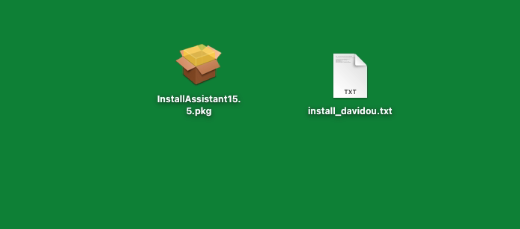
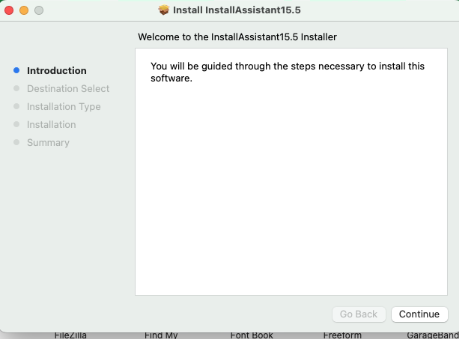
下載完成後,直接開啟InstallAssistant15.5.pkg(我這邊有修改檔案名稱 以方便辨識)並點選繼續
After the download is complete, simply open the InstallAssistant15.5.pkg.(I have modified the file name here for easier identification.) Then click Continue
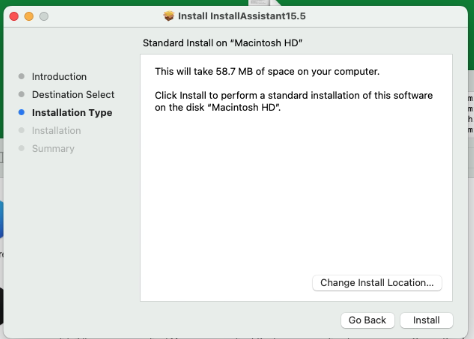
點選install
Click Install.
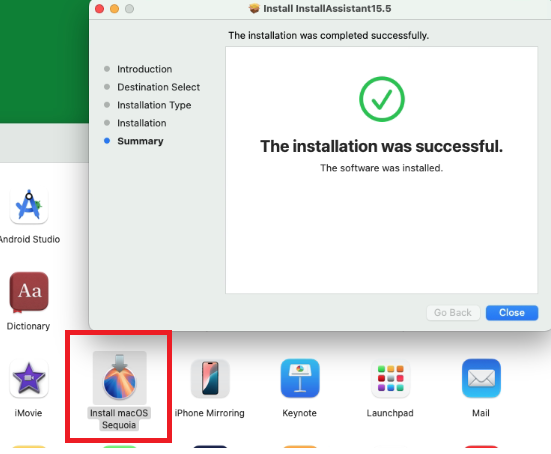
完成之後你就可以在你的Finder裡面的應用程式看到多了一個install macOS Sequoia的程式
After it is complete, you will see an additional application named Install macOS Sequoia in your Finder’s Applications folder.
2.接下來開始教學製作安裝隨身碟
Next, we will begin the tutorial on creating the bootable installer USB drive.
在您的MAC上面插入一個外接的隨身碟(建議是高速SSD) 容量至少64G 並把他格式化成mac os Extended(journaled)格式
Insert an external flash drive (a high-speed SSD is recommended) with a minimum capacity of 64GB into your Mac and format it as macOS Extended (Journaled).
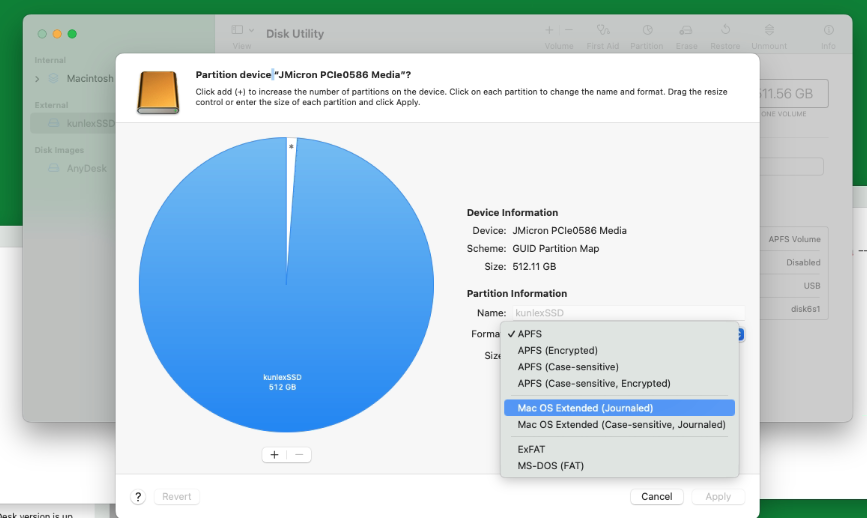
你可以打開你系統的DISK Utility 選擇你的隨身碟,並在視窗UI上方選擇partition 會出現如下圖所示,即可格式化成mac os Extended(journaled)
You can open your system’s Disk Utility, select your flash drive, and choose Partition from the window UI at the top. Allowing you to format it as macOS Extended (Journaled).
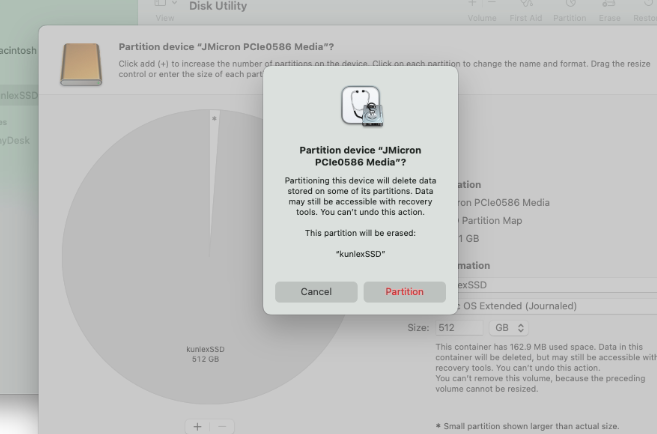
完成之後,去應用程式打開你得終端機
After that is finished, go to your Applications folder and open Terminal.
並輸入以下指令
sudo /Applications/Install\ macOS\ Sequoia.app/Contents/Resources/createinstallmedia --volume /Volumes/kunlexSSDAnd enter the following command:
sudo /Applications/Install\ macOS\ Sequoia.app/Contents/Resources/createinstallmedia --volume /Volumes/kunlexSSD
注意:請將kunlexSSD改為你隨身碟的正確名稱
(Note: If the name of your external drive is different from kunlexSSD, you must replace /Volumes/kunlexSSD with the correct name of your drive.)
Terminal會提示需要權限,請按接受
The Terminal will prompt for permission, please press Allow to accept.
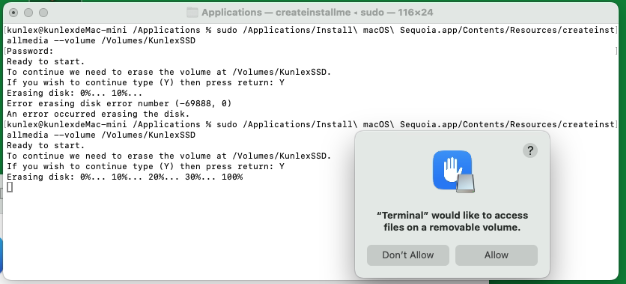
當你畫面出現Install media now available at “/Volumes/Install macOS Sequoia” 就已經完成了
When your screen shows “Install media now available at “/Volumes/Install macOS Sequoia””, the process is complete.
3.開始重灌Mac OS
3.Starting the macOS reinstallation.
你必須關閉這台MAC,關閉後請長按電源鍵不放直到recovery畫面出現為止
You must shut down the Mac. After it is shut down, press and hold the power button until the Recovery screen appears.
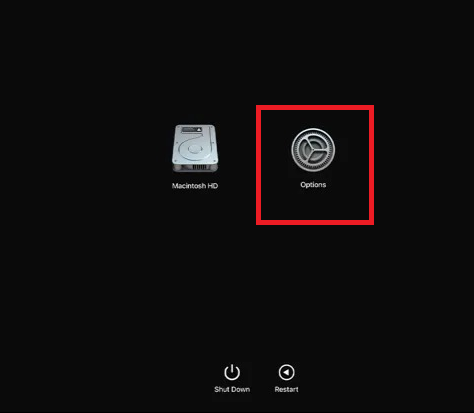
請選擇options 進去之後找到Disk utility
Please select Options, and once inside, find Disk Utility.
之後選擇你的macintosh HD 並清除磁碟
Next, select your Macintosh HD and erase the disk.
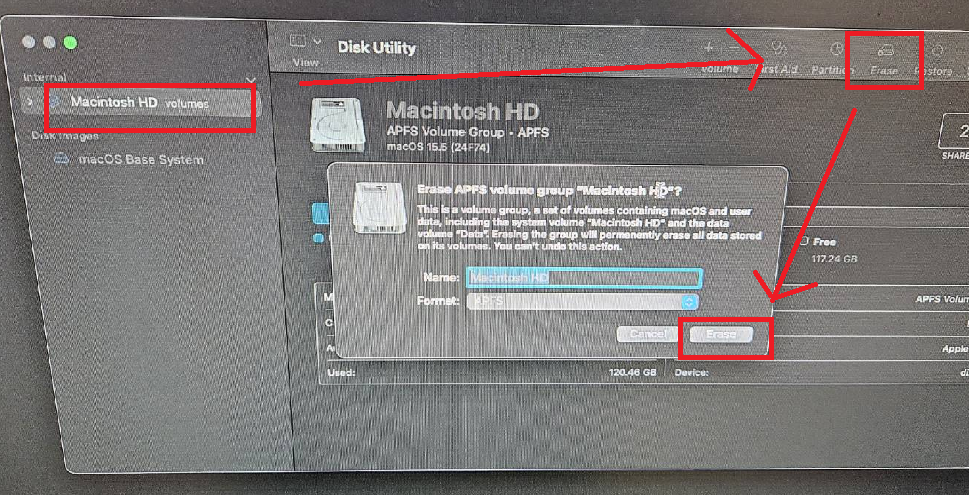
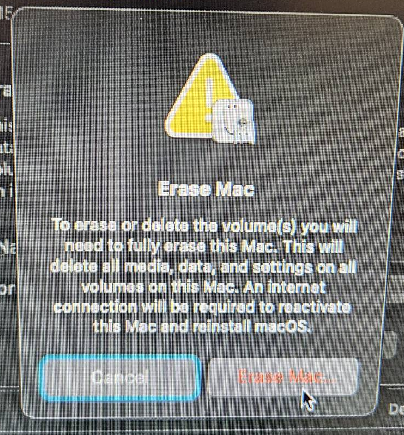
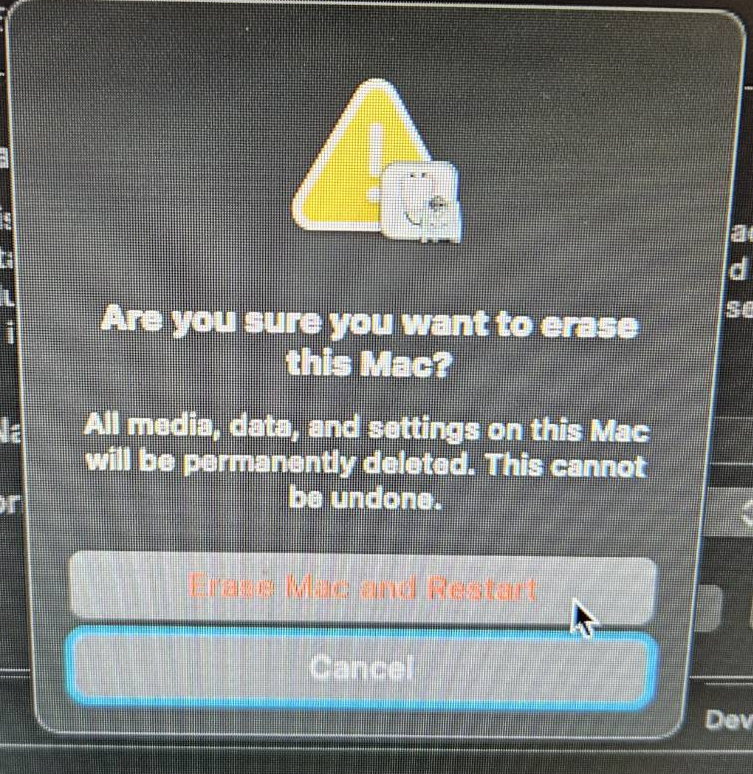
清除完成後,它會自動重開機
After the erase is complete, it will automatically restart.
重開機後看是否有出現下圖的安裝畫面(請確保你的隨身碟有插著),如果跳到找不到開機裝置的畫面的話,請關機,關機後請再次長按著電源不放直到出現recoery畫面即會出現
After restarting, check if the installation screen shown below appears (make sure your USB drive is plugged in). If it jumps to a screen saying no boot device can be found, please shut down the Mac. After it is shut down, press and hold the power button again until the Recovery screen appears, and then the installation screen should show up.
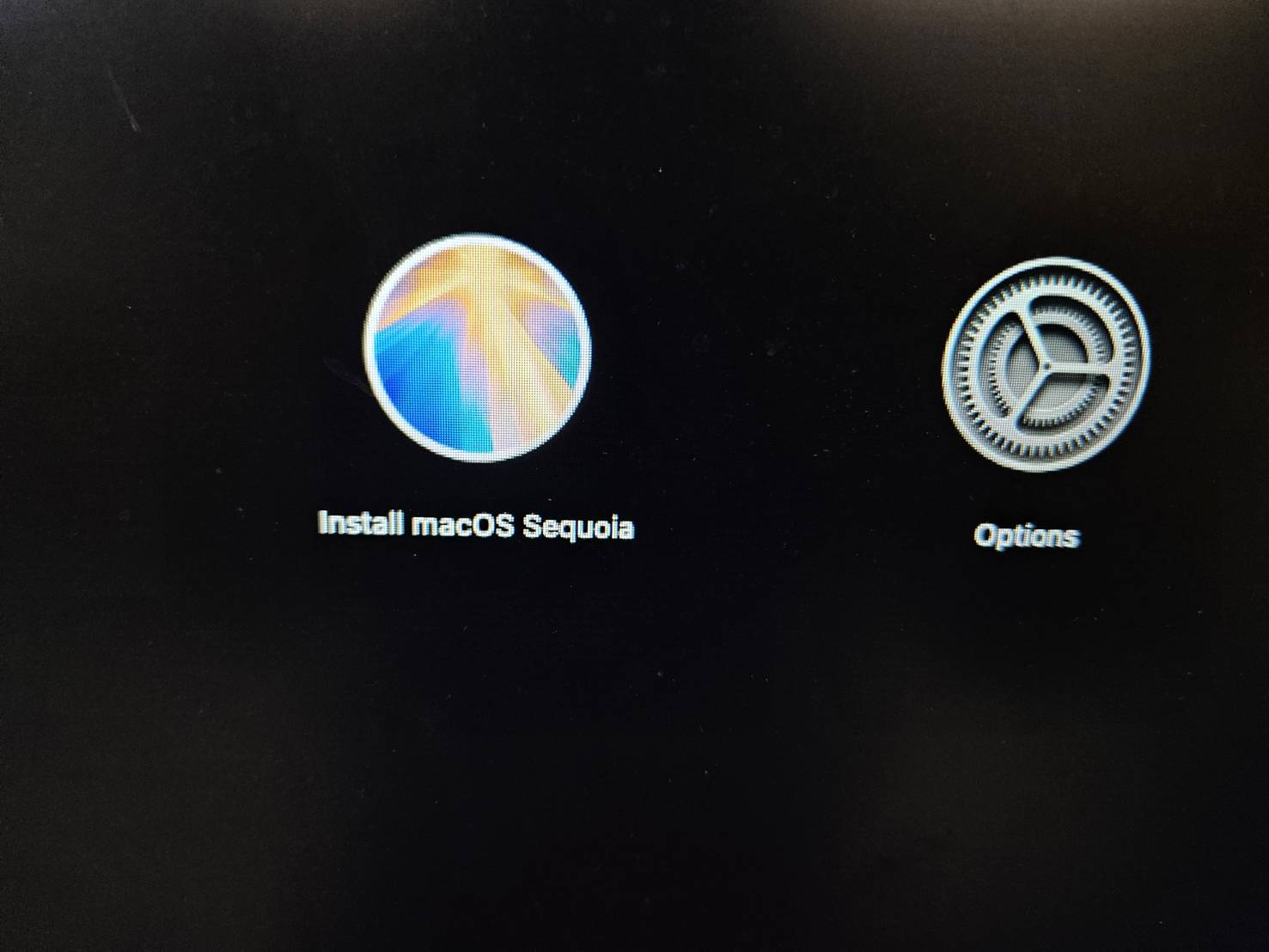
接下來就可以開始進行安裝了,請依照畫面提示開始安裝,安裝時間約略為50分鐘,如你用高速SSD可能不到10分鐘即可安裝完畢
You can now proceed with the installation. Please follow the on-screen prompts to begin. The installation time is approximately 50 minutes, but if you are using a high-speed SSD, it may be completed in less than 10 minutes.
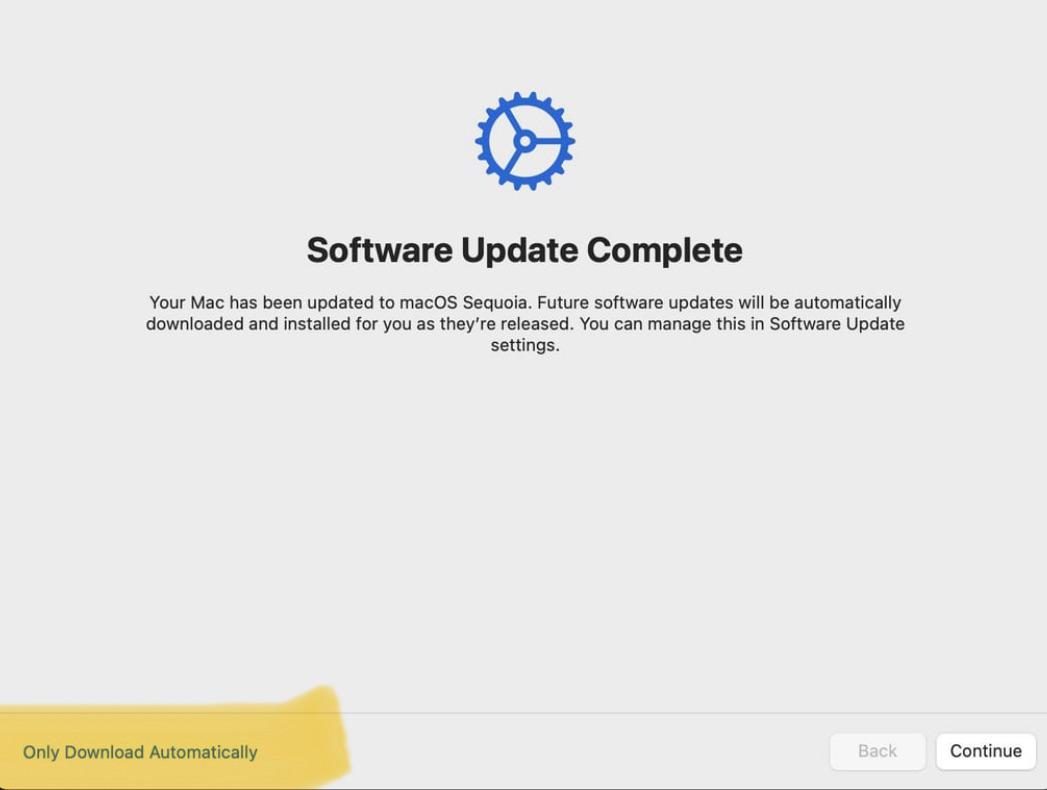
請記得,安裝過程中如果有出現下圖這樣,請記得選左邊的僅下載,以免被自動升級到最新版本
Please remember, if a screen like the image below appears during the installation, select Only Download Automatically on the left to avoid automatically upgrading to the latest version.
以上這樣你就完成了MAC OS降版的作業了
With that, you have completed the process of downgrading your macOS.
ref:Download MacOS Sequoia 15 Full Installer
About Author

DAVIDOU
一個不務正業,甚麼科技產品都玩的網路宅宅。 If you want to find me,that's easy! I will always on the Internet. so just find me, follow me. I will show you everything fun.
我的社群網路